What is a sprite sheet?
A sprite sheet (sometimes called a sprite atlas) is a single image containing many individual frames laid out on an even grid. Instead of loading dozens of separate PNGs, a game loads one image and reads each frame by its position. That's faster, uses less memory, and keeps your project organized.
You can make one for free in the PixeMaker editor — draw your frames, then export them all as one sheet.
Quick overview: Draw frame 1 → add a new frame and draw the next pose → repeat → export as a sprite sheet PNG. PixeMaker arranges the frames on a grid for you.
Step 1: Decide your frame size
Pick one pixel size and use it for every frame — for example 32×32 or 64×64. Consistent frame dimensions are the whole point of a sprite sheet: they let the engine calculate where each frame sits with simple math. Set this canvas size in PixeMaker before you start drawing.
Step 2: Draw your first frame
Create the first pose of your animation — say, a character standing, or the first frame of a walk cycle. If you're new to drawing sprites, our beginner's guide to making pixel art covers palettes, shading, and cleanup.
Step 3: Add frames for each pose
Add a new frame for the next step of the motion. A tip that saves hours: duplicate the previous frame and edit only what moves, so the parts that stay still line up perfectly from frame to frame. PixeMaker's onion-skinning shows a ghost of the previous frame underneath, which makes smooth motion much easier.
A simple walk cycle needs only 4–8 frames. Start short; you can always add more.


Step 4: Export as a sprite sheet
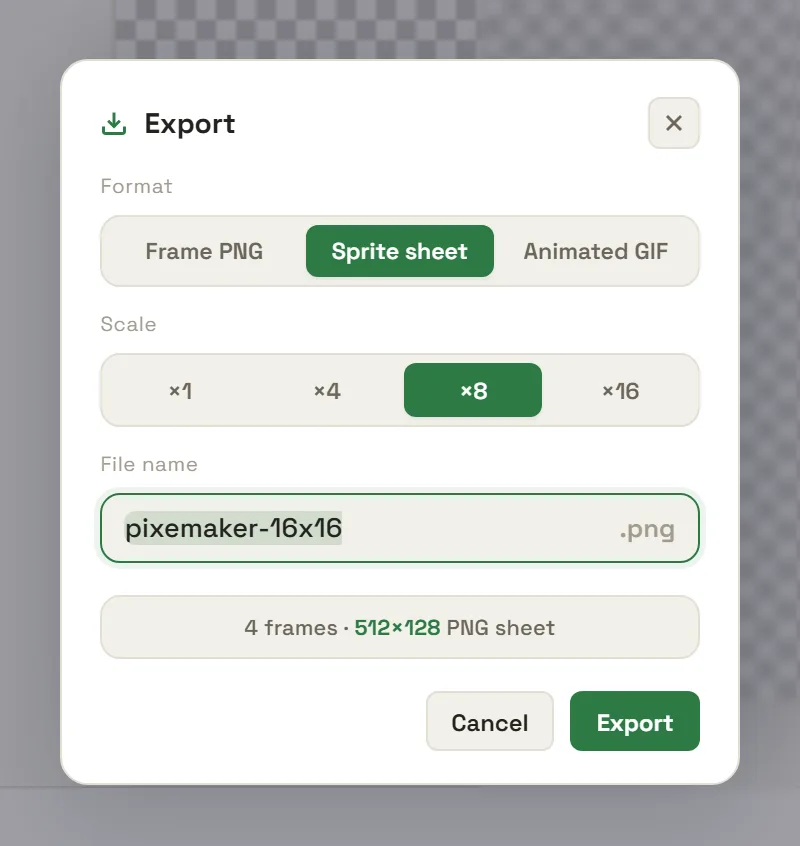
When your frames are done, choose the sprite sheet export in PixeMaker. All frames are written to one PNG on an even grid, at the scale you pick (1×, 4×, 8×, or 16×). Export at a higher scale if your engine or art style calls for larger pixels.
Step 5: Import it into your game engine
The workflow is similar across engines:
- Unity: set the texture's Sprite Mode to Multiple, open the Sprite Editor, and slice by cell size using your frame dimensions (e.g. 32×32).
- Godot: use an AnimatedSprite2D with a SpriteFrames resource, or a Sprite2D with Region and hframes/vframes set to your grid.
- GameMaker: import the sheet as a sprite and set the number of frames and cell size so it splits into images automatically.
Because every frame is the same size on an even grid, slicing lines up cleanly with no manual nudging.
Tips for clean sprite sheets
- Keep a consistent origin. Draw each pose anchored to the same point (like the feet) so the sprite doesn't jitter when it animates.
- Use a transparent background. Export with transparency so sprites sit cleanly over any game background.
- Name and version your exports. Re-export the whole sheet when you tweak a frame, so your game always uses the latest art.
Frequently asked questions
What is a sprite sheet?
A single image that packs many frames or sprites onto one grid. Engines load the one image and slice it into frames — faster and simpler than many separate files.
What size should each frame be?
Keep every frame identical, such as 32×32 or 64×64. Uniform frames sit on an even grid the engine can slice automatically.
How do I import a sprite sheet into Unity or Godot?
Import the PNG, set it to Multiple/atlas mode, and enter your frame size (e.g. 32×32). The engine splits the sheet into individual frames.
Related guides: How to make pixel art · How to make a pixel-art GIF · All guides